How to Post an Announcement in a Facebook Group (2026)
- How-to
- Facebook groups
- Group admins

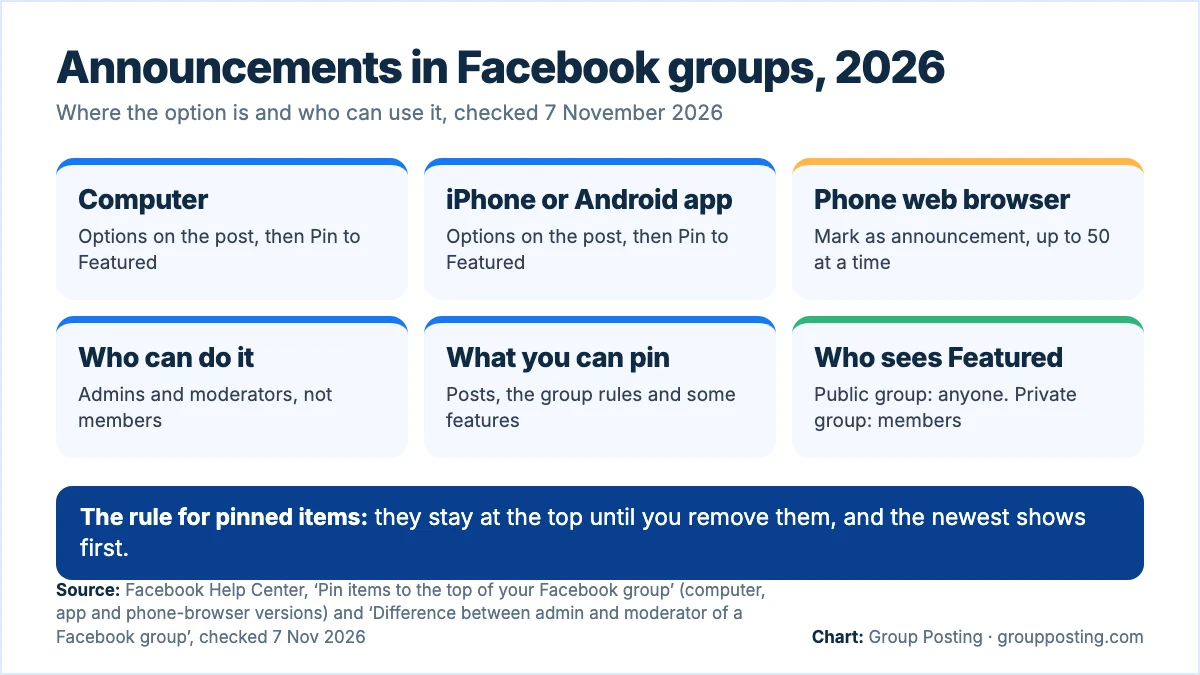
To post an announcement in a Facebook group, publish the post, then, as an admin or moderator, open its Options menu and choose Pin to Featured; Facebook shows Featured items at the top of the group until you remove them. In a phone’s web browser, the same option is called Mark as announcement.
Steps checked on 7 November 2026 against Meta’s Help Center, for a computer, the iPhone and Android apps and a phone’s web browser; labels differ between devices and may change. To put your rules at the top too, see our guide to Facebook group rules; for a post that greets each new member, see automatic welcome messages.
How to post an announcement in a Facebook group on a computer
An announcement starts as an ordinary group post. You write it and post it first, then pin it so it stays above the newer posts.
- Go to facebook.com/groups and select your group.
- Click Write something…, write the announcement and post it.
- Find the post, click Options next to it and click Pin to Featured.
The post now sits in the group’s Featured section at the top. Meta’s help says pinned items stay visible until you remove them, the newest pinned item appears at the top of the list, and you can change the order of any item. On a computer, Meta’s help doesn’t use the word announcement at all: the place is Featured and the action is Pin to Featured.
| Device | How you open the group | What you choose on the post |
|---|---|---|
| Computer | facebook.com/groups, then your group | Options, then Pin to Featured |
| iPhone or Android app | Menu, Groups, Your groups, then your group | Options, then Pin to Featured |
| A phone’s web browser | Menu, Groups, then your group | Options, then Mark as announcement (up to 50 at a time) |
How to pin an announcement in the Facebook app
Meta gives the same steps for the iPhone and Android apps:
- Tap Menu in the top left, tap Groups, then Your groups, and select your group. If you don’t see Groups, tap See more.
- Find the post you want to pin.
- Tap Options next to the post, then tap Pin to Featured.
Meta’s steps start from a post that’s already in the group, so post it first. If you want it to go out at a set time, schedule it (see below) and pin it once it’s live.
In a phone’s web browser: Mark as announcement
Open Facebook in a phone’s browser instead of the app, and Meta’s help for the same feature uses different words. Group announcements are posts that appear at the top of the group in an announcements section, and a group can have up to 50 announcements at a time.
- Tap Menu in the top right, scroll down to Groups, tap Groups at the top and select your group.
- Find the post you’d like to announce and tap Options to the right.
- Tap Mark as announcement.
To take one down, go to the announcement, tap Options and tap Remove announcement. The same page notes that group members get notifications for announcements if they have notifications turned on.
What you can pin to Featured
Featured isn’t only for posts. Meta lists three kinds of item: posts, the group rules and some group features. That makes it the natural home for the few things every member should see first, such as an update that matters this week, the rules and a feature you want people to use.
| Item | Steps | Note |
|---|---|---|
| A post | Options next to the post, then Pin to Featured | The newest pinned item shows first; you can reorder |
| The group rules | Add next to Featured at the top of the group, then Pin next to Rules | Shows the rules at the top of the group |
| A group feature | Group settings, Added to group, Edit next to the feature, then the Pin to the Featured section toggle | Only certain features can be pinned |
| Remove a pinned item | Group settings, Added to group, Edit next to the item, then the same toggle | Pinned items stay until you remove them |
Who sees Featured depends on the group. In a public group, anyone on or off Facebook can see the pinned items; in a private group, only members can. So don’t pin anything in a public group that you wouldn’t post on the open web.
Who can make an announcement, and what members can do
Only admins and moderators. Meta’s comparison of the two roles gives both of them “Pin or unpin a post”, and the phone-browser version of the help says it plainly: you need to be a group admin or moderator to announce something in a group. Admins alone change group settings or make someone else an admin or moderator.
| Action | Admin | Moderator | Member |
|---|---|---|---|
| Pin or unpin a post | Yes | Yes | No |
| Approve or deny posts | Yes | Yes | No |
| Schedule a group post | Yes | Yes | No |
| Set up a recurring post | Yes | No | No |
| Tag @everyone, groups up to 100 members | Yes | Yes | Yes |
| Tag @everyone, groups of 100 to 200,000 | Yes | Yes | No |
Members can’t pin a post themselves, and Meta’s pinning help describes no way for members to request it. If you’re a member with news the whole group should see, ask an admin or moderator to feature it. A badge may appear by their names on group posts and comments, though Meta notes they can choose not to show it. In a group that approves posts first, your post appears only after an admin or moderator approves it, so ask once it’s live.
How to write an announcement people notice
Pinning keeps a post in view; it doesn’t make people read it. A few habits help.
- Put the news in the first line. Say what changes and when, then the detail. Members scanning the top of the group should get the point without opening the post.
- Format it on a computer. Meta says group posts can only be formatted on a computer, with headers, bold, italics, quotations and bulleted or numbered lists.
- Add a title in the app. Post titles are an app feature: Meta lists them for the Android and iPhone apps, not for computers.
- Pick the time. Admins and moderators can schedule a group post; on a computer, it’s the calendar button next to Post. Meta’s own example is checking Insights for when the group is most active and scheduling an important announcement for that time.
- Repeat what repeats. Admins can set up a post that recurs daily, weekly or monthly with Admin Assist, which suits a weekly reminder better than a permanent pin.
Tell people, too. Meta’s Featured help doesn’t say that pinning a post notifies anyone, and when someone joins a group, their notifications start at Highlights, which covers suggested posts and posts from friends. For an important update, Meta’s example is tagging @everyone. In groups of up to 100 members anyone can use it, in groups of 100 to 200,000 only admins and moderators can, and in larger groups no one can. Each person can use it once a day in a group, each group has a cap on how many times it can be used in any 7 days, whoever uses it, and members can turn those notifications off, so save it for news that matters.
Posting the same announcement in several groups
If you run several groups, or share news in groups you belong to, each group needs its own post, and only that group’s admins and moderators can pin it. A tool such as Group Posting saves the post once and sends it to the groups you pick, one group at a time, while Chrome is open, and shows which posts went live and which wait for approval; see the auto poster and scheduler. It doesn’t pin anything, so pin the announcement by hand in each group you manage, and check each group’s rules before you post in groups you only belong to.
Frequently asked questions
How do I make an announcement in a Facebook group?
Post it in the group, then open the post’s Options and choose Pin to Featured. You need to be an admin or moderator. In a phone’s web browser the option is Mark as announcement.
What’s the difference between Featured and announcements in a Facebook group?
Mostly the wording. On a computer and in the Facebook app, Meta’s help calls the place Featured and the action Pin to Featured. The phone-browser version of the same help page talks about group announcements and Mark as announcement, with up to 50 at a time.
Can a member make an announcement in a Facebook group?
No. Only admins and moderators can pin or unpin a post. A member can ask an admin or moderator to feature a post once it’s live in the group.
How many announcements can a Facebook group have?
Meta’s phone-browser help says a group can have up to 50 announcements at a time. The Featured version of the page gives no number; it says the newest pinned item appears first and you can change the order.
Do members get notified about an announcement?
Meta’s phone-browser help says members get notifications for announcements if they have notifications turned on; its Featured help doesn’t mention notifications. New members start on Highlights, so for an urgent update admins can also tag @everyone, within Meta’s limits.
How do I remove a pinned announcement?
On a computer, open Group settings, scroll to Added to group, click Edit next to the item and switch off the Pin to the Featured section toggle. In a phone’s web browser, open the announcement’s Options and tap Remove announcement.
Can I schedule an announcement in a Facebook group?
Yes. Admins and moderators can schedule a group post for a set date and time. Meta’s pinning steps start from a post that’s already in the group, so pin it once it goes live.
Is Featured the same as group highlights?
No. Group highlights exist only in certain private groups: members can approve some of their posts and comments to be shown publicly to people outside the group, and no one can comment on or react to them.
Sources
- Facebook Help: Pin items to the top of your Facebook group (computer, iPhone and Android app, and phone-browser versions), checked 7 November 2026.
- Facebook Help: Difference between admin and moderator of a Facebook group, checked 7 November 2026.
- Facebook Help: How to tag @everyone in a post or comment in a Facebook group, checked 7 November 2026.
- Facebook Help: Schedule a post or set up recurring posts in a Facebook group you manage, checked 7 November 2026.
- Facebook Help: Post in a Facebook group, checked 7 November 2026.
- Facebook Help: Format your post in a Facebook group, checked 7 November 2026.
- Facebook Help: Add a title to your post in a Facebook group, checked 7 November 2026.
- Facebook Help: How to turn notifications on or off for a Facebook group, checked 7 November 2026.
- Facebook Help: About group highlights for private Facebook groups, checked 7 November 2026.
Part of Running and growing a Facebook group, our topic page with every guide on this subject. Start with the main guide: How to Grow a Facebook Group: A Four-Week Plan.
For the group-publishing part of your workflow, explore Auto poster and scheduler, or compare plans on Group Posting pricing.