Getting started with Group Posting
Install the extension, bring in your Facebook groups and publish your first post. Eight short steps, about 10 minutes, and the free plan is enough.
Before you start
- A computer with Chrome or Microsoft Edge. Browser extensions do not run on phones.
- Facebook open and signed in in that same browser. Group Posting uses your existing session and never asks for your Facebook password.
- Groups you have already joined. You can only post where you are a member, and each group's rules still apply.
Install Group Posting and pin it
- Add Group Posting to Chrome from the Chrome Web Store, or to Microsoft Edge from Edge Add-ons. A welcome page opens.
- Chrome hides new extensions. Click the puzzle piece in Chrome's toolbar, then click the pin next to Group Posting Pro. The icon now stays in your toolbar.
Tip: if the icon is not pinned yet, setup shows a Keep it handy step that turns green by itself as soon as you pin it.
Open it and connect Facebook
- Sign in to facebook.com in the same browser, with the account you want to post from.
- Click the Group Posting icon. Setup opens on Who are you posting as? When it shows Facebook connected, choose your profile or one of your Pages. Each keeps its own groups.
- If it says Facebook not detected, choose Open Facebook, sign in, come back and choose Check connection.
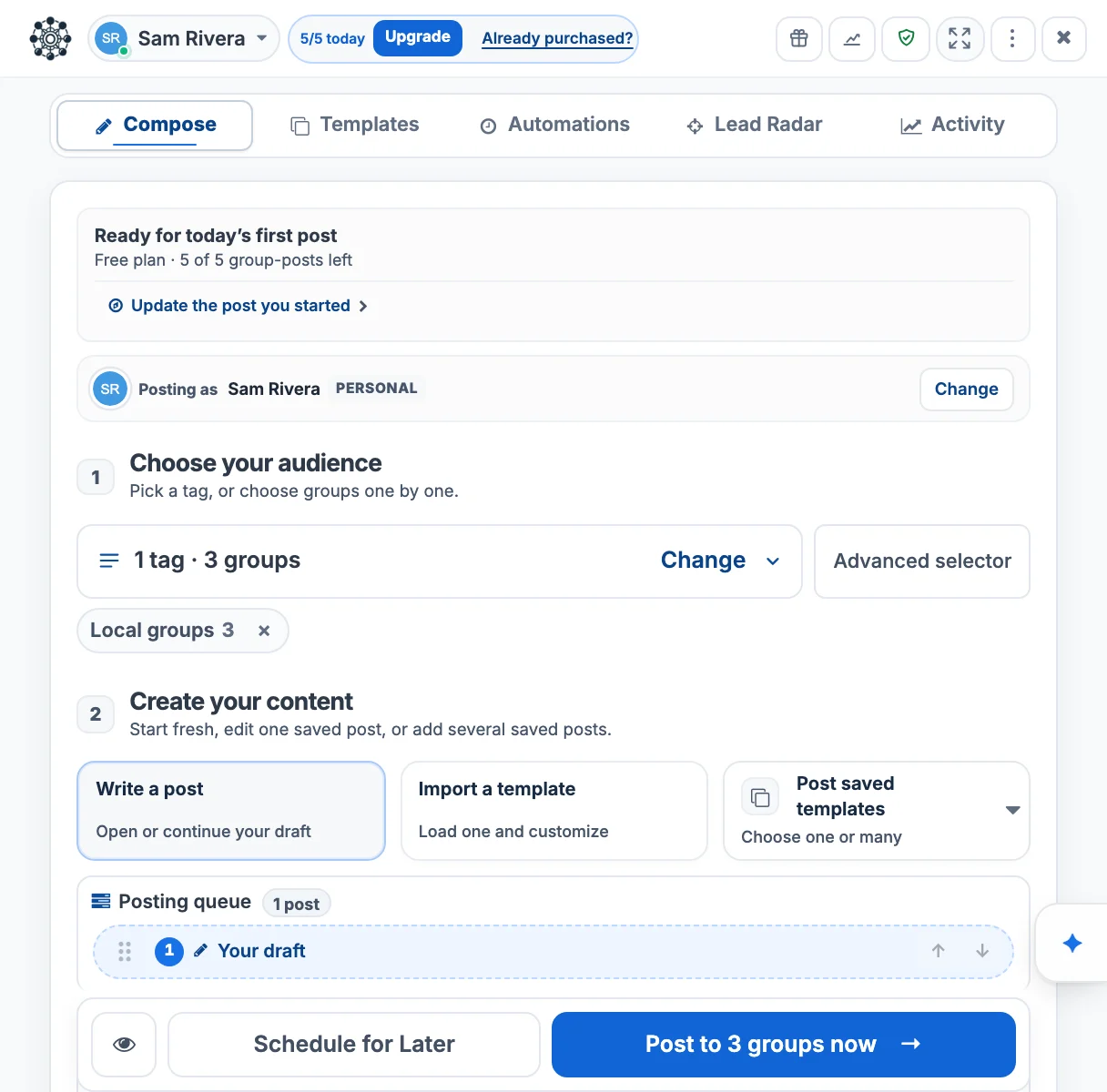
Bring in your groups
- When you continue from the first setup screen, the import starts by itself: Importing your groups… You can keep going while it runs.
- Pick up to three groups for your first post, or choose Pick 3 for me. You can change this any time.
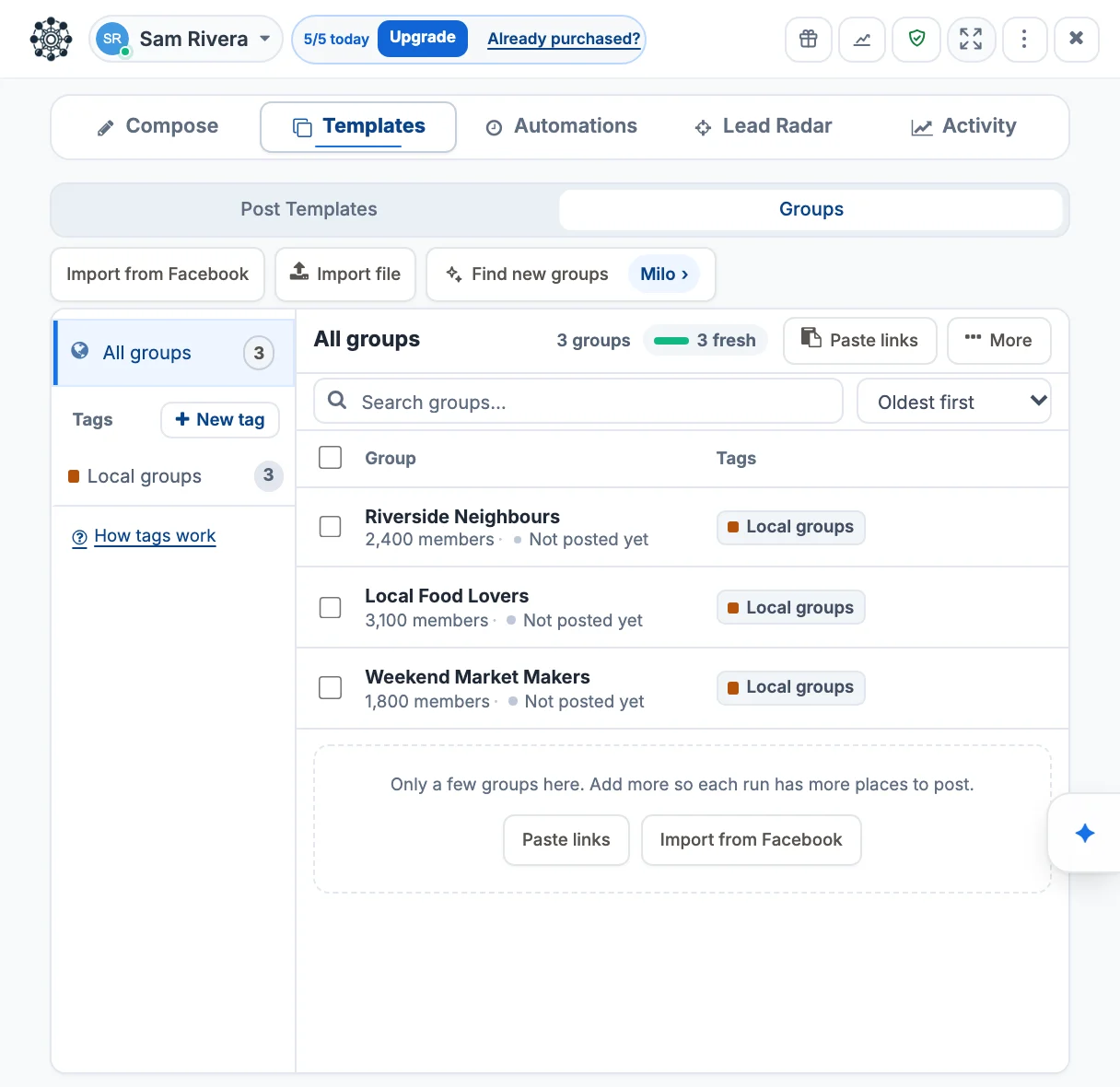
- Later, find every group under Templates → Groups. Use Import from Facebook to add new ones, and New tag to save a set, such as "Local groups". In Compose you can post to a whole tag.
Finish the short setup
- Posting responsibly: tick "I'll follow each group's rules, review my posts, and keep sensible posting delays." This publishes nothing. Turn on Build up gradually only if your Facebook account is brand new.
- Your voice is optional. Choose Not now to skip it.
- Your plan: choose Continue free to start on the free plan, which allows 5 group-posts a day, or compare the paid plans. You can change plans later.
Tip: Skip setup on the first screen still asks for the rules tick, then takes you straight to Compose.
Write your post
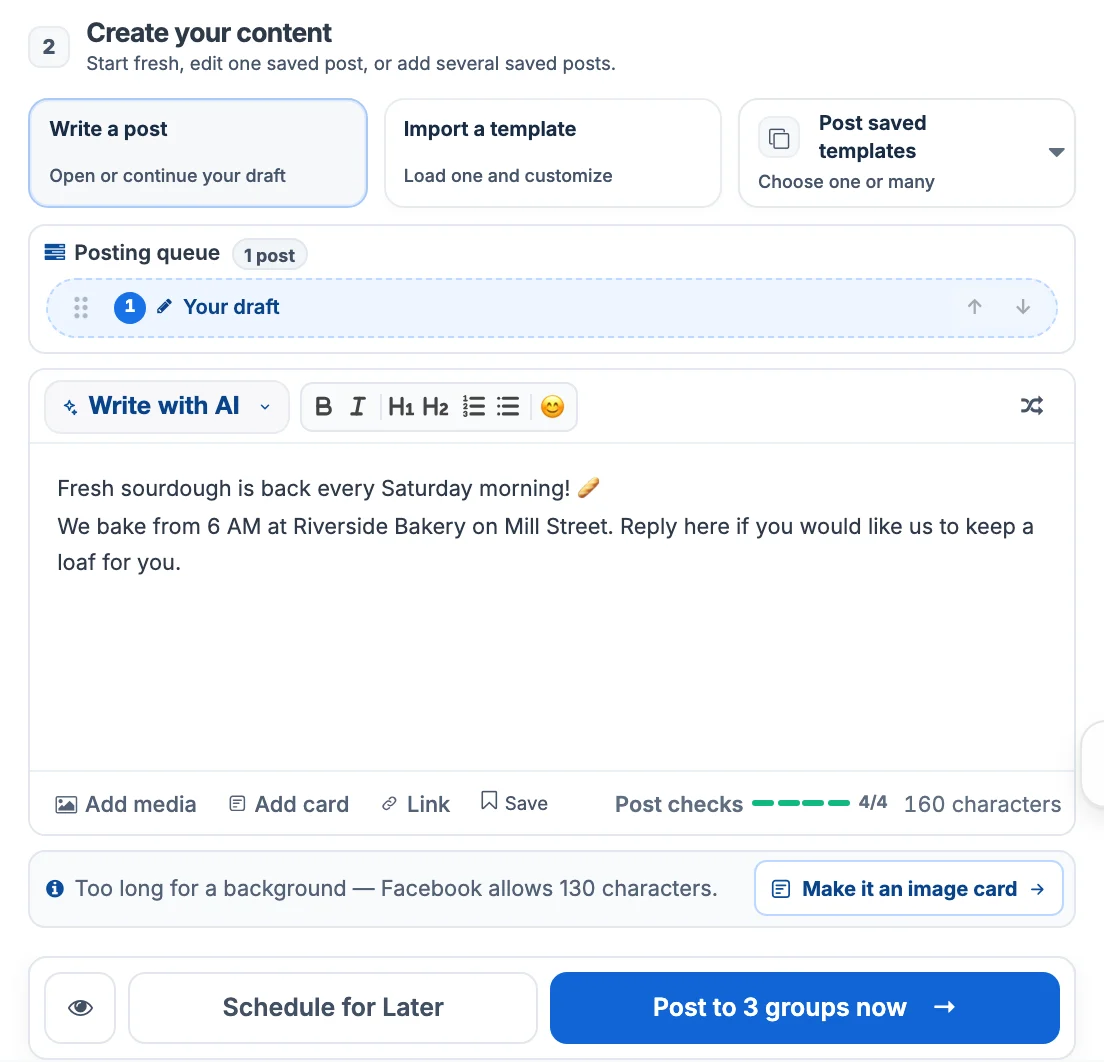
- Open Compose. Under Choose your audience, pick a tag or choose groups one by one.
- Under Create your content, write your post. Or open Write with AI for a draft you can edit. The free plan includes a few AI tries; Pro includes ongoing AI writing.
- Use Add media for photos or video, Link for a web link, and the shuffle button for Random variations, so each group gets slightly different wording.
Check it and post
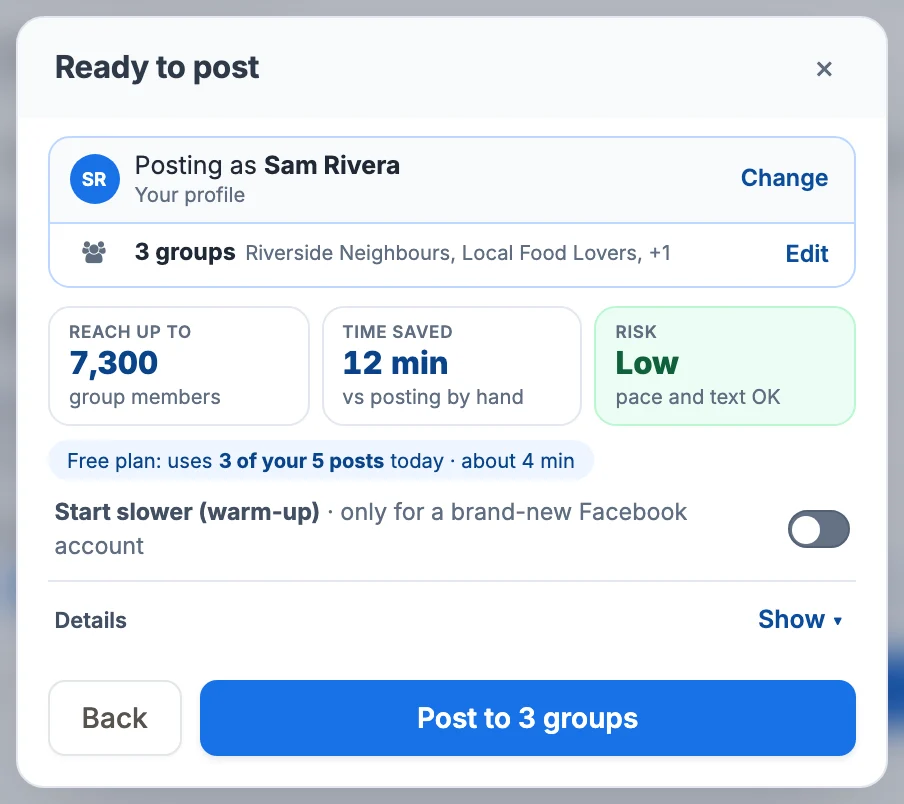
- Press Post to 3 groups now. The button always shows how many groups you picked.
- The Ready to post sheet opens. Check who you are posting as, the groups, and the three tiles: Reach up to, Time saved and Risk. Details shows the pauses and checks.
- Press Post to 3 groups. If Facebook is using a different profile or Page than the one you picked, the sheet says so and the button becomes Switch to … and post. Group Posting switches and checks before anything is sent.
Watch the results
Posts go out one group at a time, with a pause between groups (2 minutes by default) and none between 10 PM and 7 AM while Avoid night posting is on. You can minimise the window and keep working. Keep Chrome open until the run ends. Each group then gets one result:
Uncertain does not mean failed. Facebook sometimes accepts a post without confirming it. Open the group first, so you never post the same thing twice. More in what each result means.
Schedule your next posts
- Prepare a post as in step 5, then press Schedule for Later.
- In Schedule Your Post, choose Once, Daily or Weekly (Monthly is part of Pro), set the date and time, and press Save Schedule.
- Find everything you scheduled under Automations, as a list, calendar or agenda.
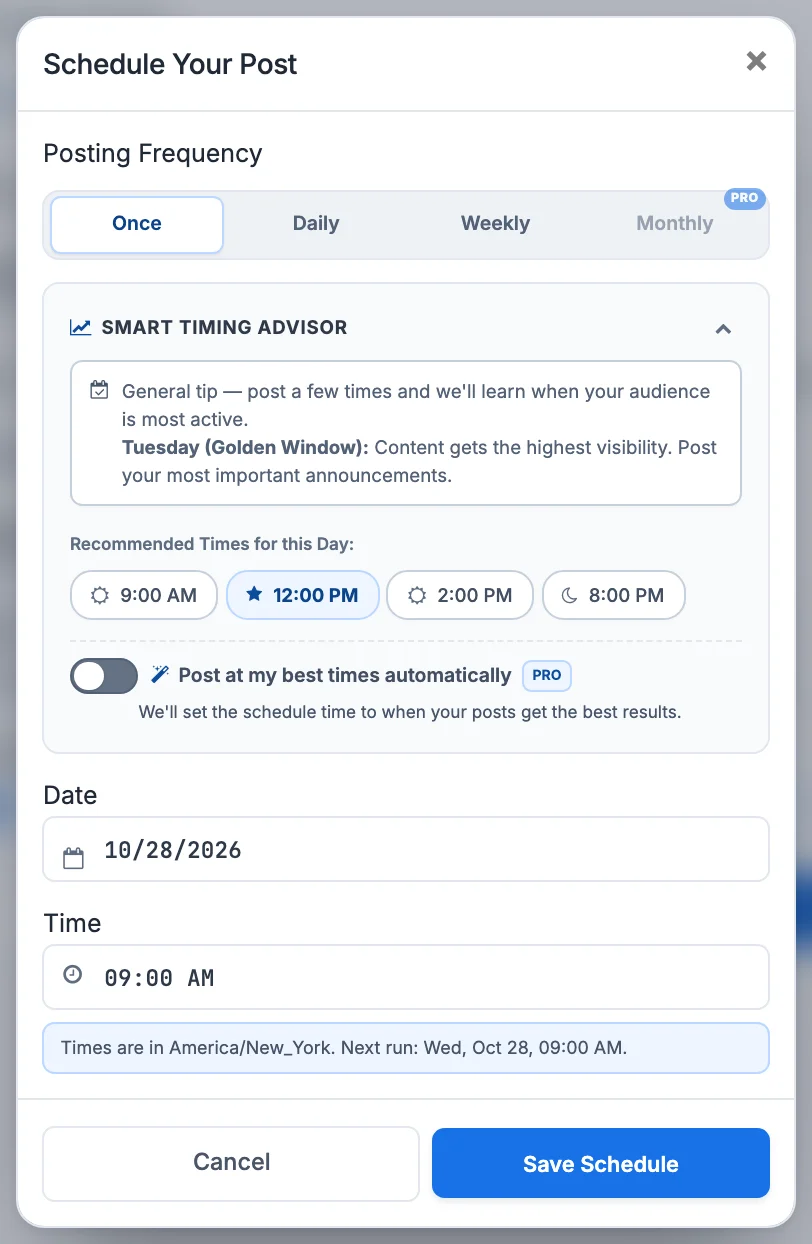
Scheduled posts go out from your computer. At the scheduled time, keep it awake and online, with Chrome open and Facebook signed in. On the free plan a schedule is saved paused; Plus runs simple schedules; Pro adds campaigns and Milo, who plans and writes posts for your approval.
What to read next
Still stuck? Search the help center or email [email protected].