How to Schedule Posts on Facebook Groups (2026)
- Facebook groups
- Scheduling
- How-to

To schedule posts on Facebook groups, you must be an admin or moderator: write the post in the group, click the Calendar button next to Post, choose a date and time, and click Schedule. Members can’t use the scheduler, so ask an admin, set a reminder to post by hand, or use a tool that posts from your own browser.
This guide gives the exact steps for admins and moderators, the recurring-post route, whether outside schedulers can post to groups, what members can do instead and the checks a browser schedule needs. Steps were checked on 31 October 2026, and Facebook can change menus and wording. For the Buffer reminder route see can Buffer post to Facebook groups?, to compare tools use the posting tools comparison, and for a buying checklist see the scheduler review. This page is the how-to.
Who can schedule posts on Facebook groups
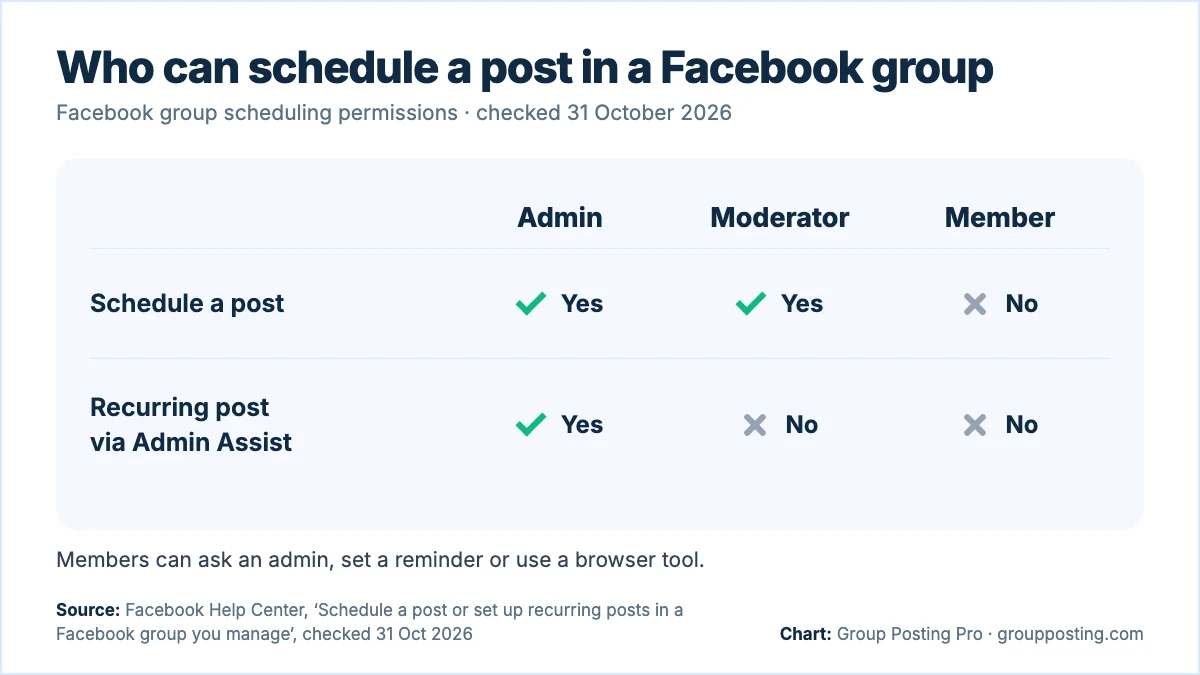
Your role determines which native scheduling controls you get. Admins and moderators can schedule a post; recurring posts are for admins only (Meta Help: scheduling group posts).
| Role | Schedule a post | Set up a recurring post | What to do instead |
|---|---|---|---|
| Admin | Yes | Yes | No alternative needed |
| Moderator | Yes | No: admins only | Ask an admin for repeats |
| Member | No | No | See the member options below |
Page posts are a different tool: see Scheduling a Page post is different, below.
Schedule a group post: steps for admins and moderators
On a computer, follow Meta’s group scheduling steps (Meta Help: scheduling group posts):
- Go to
facebook.com/groupsand select your group. - Click Write something…. You may need to click Discussion at the top of the group first.
- Write your post.
- Click the Calendar button next to Post.
- Choose the date and time, then click Schedule.
Three catches, from the same Meta page:
- The Calendar option appears only after an admin or moderator starts typing.
- Meta lists computers and the Android, iPhone and iPad apps, shows the same steps under each device tab and says the feature is not available in mobile browsers.
- Meta notes that some formatting options are available on facebook.com on a computer but not in the app (it states this under the recurring-post steps).
Meta’s group guide gives no figure for how far ahead you can schedule and does not say which time zone the picker uses (its Page guide says Page times follow your current time zone). Use the date picker you see, and check the time it shows before you confirm.
Meta’s steps start from one group and schedule one post at a time, so the same post in several groups means repeating them in each group. To post to many groups, see how to post to multiple Facebook groups.
Edit, reschedule or cancel a scheduled post
Use Meta’s scheduled-post controls:
- Open Scheduled Posts in the left-hand Admin tools menu; you may need Manage first (Meta Help: scheduling group posts).
- Choose Reschedule Post to move it, or Post Now to publish it.
- For wording changes or cancellation, use Options, then Edit post or Delete post.
Recurring posts also show in Scheduled Posts, but only 24 hours before they publish. The recurring route is below.
Recurring posts with Admin Assist (admins only)
For repeats, admins use Admin Assist (Meta Help: scheduling group posts):
- Open Admin Assist in the left menu.
- Scroll down and click Add next to Publish a custom post.
- Select Start from scratch, or choose a suggested prompt.
- Edit the post, choose how often it should post and set the date and time of the first post.
- Click Add to Admin Assist.
| Question | Scheduled post | Recurring post |
|---|---|---|
| Who can set it up? | Admins and moderators | Admins only |
| How often? | Once | Daily, weekly or monthly |
| Where do you set it up? | The post box in the group | Admin Assist |
| Where do you edit? | Scheduled Posts | Shows in Scheduled Posts 24 hours before it publishes, where the admin who set it up can view, edit or delete it. Other admins must delete it from Admin Assist and add it again. |
A weekly rhythm for a group you run
This is our illustrative planning framework, not a recommended posting frequency.
| Day | Post type | Set up as | Check after it goes out |
|---|---|---|---|
| Monday | Weekly question | Recurring | Answer early replies |
| Tuesday | Timely announcement | One-off scheduled | Confirm details |
| Wednesday | Useful resource | One-off scheduled | Answer questions |
| Friday | Weekly wins thread | Recurring | Acknowledge contributions |
| Monthly | Monthly announcement | Recurring | Review next month’s wording |
Admins can find popular days and times through Manage, then Insights (Meta Help: group insights), and Meta suggests using the group’s activity to time important announcements (Meta Help: scheduling group posts). Pick times from your own group’s data. A schedule is only the start: someone still has to reply.
Can Buffer and other schedulers post to a group?
Not through Meta’s API. Buffer’s help lists posting to a Facebook group among the features that are not supported through a social network’s API (Buffer Help: using notification publishing), and Meta’s Graph API changelog lists the Groups API permission publish_to_groups as deprecated in version 19.0 and says the change will apply to all versions on 22 April 2024 (Meta: Graph API v19.0 changelog).
Two kinds of outside tool are covered here. A notification tool such as Buffer reminds you on your phone and you finish posting yourself (Buffer Help: using notification publishing). A browser tool works from your own signed-in browser, so its schedule depends on the checks further down. The table in the next section compares them with the other options.
If you are only a member: five options
Meta reserves native group scheduling for admins and moderators, so ordinary membership does not give you that control (Meta Help: scheduling group posts).
| Option | How it works | What you still have to do | Good to know |
|---|---|---|---|
| Ask an admin or moderator | Ask them to schedule it | Agree wording and timing | Their role has the control |
| Your own reminder | Post by hand when reminded | Keep the draft ready | Admin approval may apply |
| Notification tool, such as Buffer | Prepare it, receive a mobile notification, tap and finish posting | Complete publication yourself | Requires Buffer’s mobile app |
| Schedule on your Page, then share | Schedule the post on a Page you manage, then share it to the group when it goes out | Do the share yourself at that time | Meta’s steps share as the Page, and a group’s admins may not allow Pages (Meta Help: acting as your Page in a group); admin approval may apply |
| Browser tool | With Plus or Pro, Group Posting runs your schedule from your signed-in browser, one group at a time | Keep Chrome open and the computer awake and online | For groups already joined; group rules and admin approval still apply |
Pick the option that matches who will be free when the post is due. Use the posting tools comparison to compare workflows and the scheduler buying checklist to assess a tool.
Illustrative message to an admin: Could you schedule this draft for [date, time and time zone], if it fits the group? I can change the wording.
Will your browser schedule run? Five checks
These checks apply to the browser tool above; Group Posting’s schedules help explains late runs. Keep every condition true when the schedule is due and throughout the run:
- The computer is awake.
- It is online.
- Chrome is open.
- The extension is enabled.
- You are signed in to Facebook.
Browser schedule times use the device’s time zone. Check that zone before entering a time, especially if you travel.
| Case | What happens | What to do |
|---|---|---|
| Recurring post is late | Default: one late run when Chrome is ready. Missed days are not replayed. | Review whether that late post still fits |
| One-off past its start window | Becomes Missed; default window is two hours | Use Reschedule |
| Chrome closed | Nothing posts until Chrome opens again | Open it and review the schedule’s status |
After the due time, check the post itself in the group. A post that is awaiting admin approval is not published yet, and an unconfirmed result should be inspected before you try again.
Scheduling a Page post is different
People with Facebook or Task access can schedule Page posts in Meta Business Suite between 20 minutes and 29 days ahead, using their current time zone. That window is for Pages; Meta’s group article gives none (Meta Help: scheduling Page posts). Business Suite is not part of Meta’s group steps: the group guide’s steps never mention it, and the four Meta Business Help pages we read on scheduling posts (listed under Sources) do not mention groups.
The Calendar button is missing: what to check
| What you see | Likely reason (from Meta) | What to do |
|---|---|---|
| You are a member | Scheduling requires an admin or moderator role | Use the member options |
| You have not started typing | The option appears after typing starts | Start writing the post |
| You use a mobile browser | The feature is unavailable there | Use a supported app or computer |
| Moderator needs repeats | Recurring posts are admin-only | Ask an admin to use Admin Assist |
Frequently asked questions
Can I schedule posts on Facebook?
Yes. Meta’s group guide gives admins and moderators scheduling controls. Its Page guide uses Business Suite for people with Facebook or Task access. Check which type of destination you mean before following the steps.
Can a member schedule a post in a Facebook group?
No, not with the native group scheduler. Meta limits that feature to admins and moderators. Ask someone with that role to help, or set your own reminder to post manually.
Can Buffer or other schedulers post to Facebook groups?
Not through Meta’s API. Buffer’s own help lists posting to a Facebook group among the features a social network’s API does not support, and Meta’s changelog lists the Groups API publishing permission as deprecated, with the change applying to all versions on 22 April 2024. Buffer instead offers notification publishing for Facebook Groups: you get a phone notification and finish posting yourself. Browser tools work from your own signed-in browser.
How do I schedule recurring posts in a Facebook group?
Meta’s recurring-post route is admin-only: open Admin Assist, add a custom post, write it and choose daily, weekly or monthly timing. Set the first date and time, then add it to Admin Assist.
Can I schedule a Facebook group post from my phone?
Yes, if you are an admin or moderator using a supported app. Meta lists the Android, iPhone and iPad apps as supported and mobile browsers as not supported. Its steps are written in computer terms (for example a left-hand menu), so labels in the app may look different.
How far ahead can I schedule a Facebook group post?
Meta’s group guide gives no limit and does not say which time zone its date picker uses. For Page posts, Meta says you can schedule between 20 minutes and 29 days ahead, using your current time zone. For a group, use the date picker you see and check the time it shows before you confirm.
Can I schedule group posts in Meta Business Suite?
Meta’s group scheduling guide does not mention Business Suite in its steps. Those steps are in the group itself: the post box, Admin Assist and Scheduled Posts under Admin tools. The four Meta Business Help pages we read on scheduling posts in Business Suite and on Facebook do not mention groups. For a group, follow the group steps above.
Why can’t I see the Calendar button in my Facebook group?
Meta’s guide sets these conditions, which are the likely reasons. You are a member rather than an admin or moderator. You have not started typing, because the option appears only after typing starts. You are using a mobile browser, where the feature is not available. A moderator who wants a repeating post needs an admin: recurring posts are admin-only and are set up in Admin Assist, not with the Calendar button.
How do I edit or delete a scheduled group post?
Meta directs you to Scheduled Posts under Admin tools, possibly through Manage first. Use Options for Edit post or Delete post. Reschedule Post changes its timing; Post Now publishes it immediately.
Sources
- Facebook Help Center: Schedule a post or set up recurring posts in a Facebook group you manage, checked 31 October 2026.
- Facebook Help Center: Schedule a post and manage scheduled posts for your Facebook Page, checked 31 October 2026.
- Facebook Help Center: Post in a Facebook group, checked 31 October 2026.
- Facebook Help Center: View insights about a Facebook group you admin, checked 31 October 2026.
- Facebook Help Center: How to share a post from your Facebook Page to a Facebook group, checked 31 October 2026.
- Facebook Help Center: Act as your Page in a Facebook group, checked 31 October 2026.
- Meta Business Help: Schedule a post and manage scheduled posts for your Facebook Page, checked 31 October 2026.
- Meta Business Help: How to create and schedule Facebook posts, checked 31 October 2026.
- Meta Business Help: How to save, schedule or reschedule posts in Meta Business Suite, checked 31 October 2026.
- Meta Business Help: Reschedule posts and stories on Meta Business Suite mobile, checked 31 October 2026.
- Meta for Developers: Graph API changelog, version 19.0, checked 31 October 2026.
- Buffer Help: Using notification publishing, checked 31 October 2026.
- Group Posting: Auto Poster and Scheduler, checked 31 October 2026.
- Group Posting Help: Manage automations and scheduled posts (groupposting.com/help/automations-and-schedules/), checked 31 October 2026.
Part of Scheduling Facebook group posts, our topic page with every guide on this subject. Start with the main guide: Facebook group auto poster and scheduler.
For the group-publishing part of your workflow, explore Auto poster and scheduler, or compare plans on Group Posting pricing.