How to Share a Facebook Post to Instagram (2026 Guide)
- How-to
- Sharing
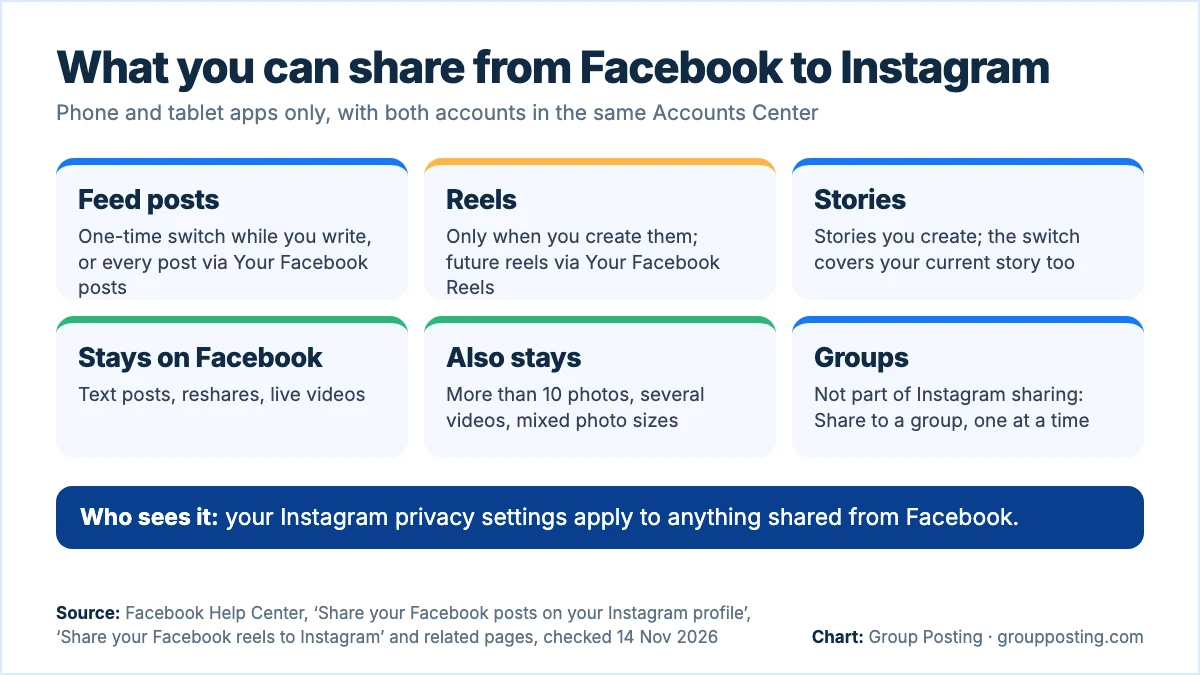
To share a Facebook post to Instagram, start the post in the Facebook app on your phone, tap Instagram below your name, turn sharing on and tap Post. Both accounts must be in the same Accounts Center first. Meta says this isn’t available on computers, and text posts, reshares and live videos can’t be shared.
Steps checked on 14 November 2026 against Meta’s Help Center, for the iPhone and Android apps. Meta is moving people from Accounts Center to Meta Account settings, so you may see either name. If you want one post in many Facebook groups rather than on Instagram, see how to share a Facebook post to multiple groups.
Before you start: put both accounts in one Accounts Center
Facebook can only pass a post to Instagram when both accounts sit in the same Accounts Center. Meta’s page says you need to add your accounts to the same Accounts Center before you can share Facebook posts to your Instagram account (Meta Help: share your Facebook posts on Instagram). Some people now see Meta Account settings in its place; the steps are the same idea under a new name.
Two more things to know before the first share. The feature lives in the phone and tablet apps: Meta lists the iPhone, iPad and Android apps and says it isn’t available on computers. And the shared copy follows your Instagram privacy settings, so who sees it there depends on your Instagram account, not on the audience you picked on Facebook.
How to share one Facebook post to Instagram
You switch sharing on while you write the post. Meta’s steps for the iPhone app are:
- At the top of your Feed, tap What’s on your mind?
- Below your name, tap Instagram. The button shows whether this post will go to Instagram. If the post can’t be shared, it shows Off.
- Use the toggle to turn one-time sharing to Instagram on.
- Tap Close to save your choice.
- Tap Post. With sharing on, the post appears on Facebook and on Instagram.
The Android app works the same way, with one label changed: you tap Go back instead of Close to save the choice.
| Step | iPhone app | Android app |
|---|---|---|
| Start | What’s on your mind? at the top of your Feed | The same |
| Choose Instagram | Instagram, below your name | The same |
| Switch it on | The one-time sharing toggle | The same |
| Save the choice | Close | Go back |
| Publish | Post | Post |
How to auto share every Facebook post to Instagram
If you want every future post to go across without touching the toggle, Meta has a standing switch. This is the setting most people mean by Facebook auto share:
- At the top of your Feed, tap What’s on your mind?
- Below your name, tap Instagram.
- Tap Accounts Center.
- Next to Your Facebook posts, use the toggle to turn automatic sharing on or off.
Automatic sharing has the same limits as a one-time share. Meta notes that a post that can’t be shared to Instagram still shows Off, so a text post stays on Facebook even with the switch on. Reels have a separate switch of their own, covered in the reels section below.
Facebook posts that can’t be shared to Instagram
Instagram can’t show everything Facebook can, so some posts never go across. Meta lists these:
| Kind of post | Why it stays on Facebook | What you can do |
|---|---|---|
| Text only | A feature Instagram doesn’t have, Meta says | Add a photo or video, or post it to Instagram on its own |
| More than 10 photos, or several videos | On Meta’s list of posts that can’t be shared | Split it into smaller posts |
| Photos of different sizes | On Meta’s list of posts that can’t be shared | Crop the photos to one size first |
| Photos that are too tall or too wide | Outside Instagram’s shapes; some are cropped slightly instead | Check the crop before you post |
| Live videos, reshares, some creative tools | Features Instagram doesn’t have | Share the original content from Instagram itself |
The quickest test is the Instagram button itself: if it shows Off for a post you are writing, that post is one of these.
Reels and stories: share a Facebook reel or story to Instagram
Reels follow stricter rules. Meta says you can only share a reel to Instagram from the Facebook app for iPhone and Android, only when you create it, and to one Instagram account at a time (Meta Help: share your Facebook reels to Instagram). When the reel is ready, tap Next, tap Instagram, switch on the toggle next to your Instagram account, tap Close and then Share now. The reel appears as a reel on Instagram, and your Instagram account’s privacy decides who sees it: anyone on a public account, only your followers on a private one.
To send every future reel across, open Menu, Settings and Privacy, Settings and Accounts Center, then under Connected experiences tap Sharing across profiles and your Facebook account, and turn on the toggle next to Your Facebook Reels (Meta Help: share future reels automatically). Reels you already shared are not affected.
Stories can go across too: Meta says you can share the stories you create on Facebook to your Instagram account (Meta Help: share your story to Instagram). Turning story sharing on or off applies to everything currently in your story as well as future updates, and story photos and videos are available for 24 hours.
| Content | When you can share it | Automatic option |
|---|---|---|
| Feed post | While you write it, in the phone app | Your Facebook posts, in Accounts Center |
| Reel | Only when you create it, in the iPhone or Android app | Your Facebook Reels, under Sharing across profiles |
| Story | For stories you create on Facebook | The setting covers your current story and future updates |
The other way round: share Instagram posts to Facebook
Many people searching for this want the reverse. Meta says sharing Instagram posts to Facebook is done in the Instagram app for Android or iPhone (Meta Help: share your Instagram posts to Facebook). Before you share, scroll down, tap Also share on…, switch on the toggle next to your Facebook Page’s name, then go back and tap Share. To do it every time, the same Accounts Center has a setting to share your future Instagram posts to Facebook automatically.
One limit is worth planning around: Meta says content created on Instagram can only be seen in the Facebook app for iPhone and Android at this time, so someone reading Facebook on a computer may not see it.
Auto share to Facebook groups
Meta’s Instagram sharing sends a post to your own Instagram profile. Its help for sharing Facebook posts to Instagram doesn’t mention groups, so it won’t put a post into the Facebook groups you belong to.
For groups, Facebook’s own route is the Share button, one group at a time. On a computer, click Share below the post and choose Share to a group; in the iPhone app the option is Share in a Group (Meta Help: share a post). Repeat it for each group, and change the wording when the same offer goes to many places: Meta’s spam policy lists repetitive content and posting at very high frequencies among the signs of spam (Meta Transparency Center: Spam). Our guide to avoiding duplicate post flags shows how.
A browser extension can take the repeat work off your hands. Group Posting adds a Share to groups button under Facebook posts, opens it on the post you are looking at, and sends the post to the groups you pick one group at a time while Chrome is open; then you check the result for each group. It runs in your own browser, so group rules and admin approval still apply. See the auto poster and scheduler.
Frequently asked questions
How do I share a Facebook post to Instagram?
In the Facebook app, tap What’s on your mind?, then Instagram below your name. Switch the one-time sharing toggle on, save your choice and tap Post. Both accounts must be in the same Accounts Center first.
Can I share a Facebook post to Instagram from a computer?
Not with Meta’s own sharing. Meta says the feature isn’t available on computers and lists the iPhone, iPad and Android apps instead, so switch it on from your phone or tablet.
Why does the Instagram button say Off?
The post can’t go to Instagram. Text posts, reshares, live videos, posts with more than 10 photos or several videos, and photos of different sizes stay on Facebook. Also check that both accounts are in the same Accounts Center.
How do I make Facebook auto share to Instagram?
Tap What’s on your mind?, then Instagram and Accounts Center, and turn on the toggle next to Your Facebook posts. Reels have their own toggle, Your Facebook Reels, under Sharing across profiles.
Can I share a Facebook reel to Instagram after posting it?
Meta says you can only share a reel when you create it, from the Facebook app for iPhone or Android. To cover later reels, turn on automatic sharing for Your Facebook Reels before you make them.
Who sees a Facebook post shared to Instagram?
Your Instagram privacy settings decide, not your Facebook audience. For reels, a public Instagram account means anyone on Instagram can see them, and a private one means only your followers.
Can Facebook auto share a post to my groups?
Not through Instagram sharing, which goes to your own profile. In Facebook you share to one group at a time with Share to a group. A browser extension such as Group Posting can send one post to the groups you pick, one group at a time.
Sources
- Facebook Help: Share your Facebook posts on your Instagram profile (computer page, iPhone and Android versions), checked 14 November 2026.
- Facebook Help: Share your Facebook reels to Instagram (iPhone version), checked 14 November 2026.
- Facebook Help: Share your future reels on Facebook to Instagram automatically (iPhone version), checked 14 November 2026.
- Facebook Help: Share your story from Facebook to Instagram, checked 14 November 2026.
- Facebook Help: Share your Instagram posts to Facebook, checked 14 November 2026.
- Facebook Help: Share a post you see on your Feed on Facebook, checked 14 November 2026.
- Meta Transparency Center: Spam, checked 14 November 2026.
Sources checked 14 November 2026. Meta changes its menus and labels often; if a step looks different, check the version of the help page for your device.
Part of Posting to Facebook groups, our topic page with every guide on this subject. Start with the main guide: How to Post to Multiple Facebook Groups (2026 Guide).
For the group-publishing part of your workflow, explore Auto poster and scheduler, or compare plans on Group Posting pricing.